 ALL ISLAND TRANSPORTATIONDRIVER HELP CENTER
What do you need help with?
Fast answers for All Island drivers.
SCHEDULE & ATTENDANCE
Calling out of a shift?
Call the Driver Call Out Line or email your name, driver number, and the shift you are calling out for.

KEEP HELP ONE TAP AWAY
Add this app to your home screen
Install the All Island Driver Help Center for quick, full-screen access—no App Store download required.
After installation: Look for the orange All Island icon on your phone’s home screen.
Browse by topic
QUICK GUIDES
Most-used procedures
iCabbi & Jobs · 2 minStarting your shiftA quick pre-shift check before accepting work.+
- Confirm your phone or tablet is charged and connected to cellular data.
- Open the iCabbi Driver App and sign in with your assigned driver ID and password.
- Confirm the vehicle reference matches the vehicle you are leasing.
- Review company messages, then make yourself available when you are ready to accept work.
iCabbi & Jobs · 2 minLogging in to the Driver AppEnter your driver and vehicle information correctly.+
- Enter your assigned four-digit Driver ID.
- Enter your assigned password.
- Confirm the Vehicle Reference field contains the correct vehicle number.
- Press the green LOGIN button.
- Read the safety warning and press OK to continue.
Important: Never share your password or store it where a passenger can see it.
Last updated: August 28, 2026
iCabbi & Jobs · 2 minAccepting an assigned jobWhat happens when a booking reaches your tablet.+
- When the alert sounds and the job appears, review it promptly.
- Press the ACCEPT button.
- Read the pickup, destination, account, passenger, and payment information.
- Open the additional notes before traveling to the pickup.
- If you cannot safely accept work, place yourself on break before a job is assigned.
iCabbi & Jobs · 1 minFollow-on jobsMove directly from your current trip to the next pickup.+
- A follow-on job may be offered when you are nearing your destination.
- Accept and review the next booking without interrupting your current passenger's trip.
- Complete the current trip correctly before traveling to the follow-on pickup.
- A dispatcher may also assign a follow-on job when coverage is needed.
iCabbi & Jobs · 1 minReading booking notesFind special pickup and passenger instructions.+
- Accept the job and open the booking details.
- Press the lowercase i information symbol in the upper-right corner.
- Read every note before arriving.
- Follow account, accessibility, entrance, contact, and payment instructions exactly.
- Ask Dispatch when a note is unclear or conflicts with the booking.
Important: Important instructions may appear only in the notes.
Last updated: August 28, 2026
iCabbi & Jobs · 2 minUsing navigationOpen directions to the pickup and destination.+
- After accepting a job, press the green TAP FOR NAVIGATION button under the pickup.
- Follow Google Maps to the pickup while continuing to drive safely.
- After pressing ARRIVED, use the new navigation button under the destination.
- Confirm the destination with the passenger before departing.
Important: Navigation is a guide. Obey road signs, closures and traffic laws at all times.
Last updated: August 28, 2026
iCabbi & Jobs · 2 minContacting Dispatch from the appSend a message or request a return call.+
- Press Base on the iCabbi home screen.
- Choose a prewritten message or select Create New Message.
- Keep the message short and include the booking or vehicle details needed.
- If a call is necessary, choose Request a Call and remain available for the response.
iCabbi & Jobs · 1 minCalling a passengerUse Customer Connect without exposing phone numbers.+
- Open the active booking.
- Press the green phone symbol next to Customer Connect.
- The call connects through the current cell number registered to your driver profile.
- Tell the office if your cell number changes so the feature continues to work.
Important: Customer Connect protects both the passenger's and driver's personal phone numbers.
Last updated: August 28, 2026
Schedule & Attendance · 2 minTaking and ending a breakPrevent jobs from being sent while you are unavailable.+
- Press the I'm Busy icon before getting gas, using the restroom, eating, or otherwise becoming unavailable.
- Choose a short or long break so Dispatch can see your status.
- When ready to work again, press Available.
- Confirm the status turns green before waiting for work.
Important: Using break status helps prevent missed-job penalties and builds trust with Dispatch.
Last updated: August 28, 2026
Schedule & Attendance · 1 minMissed-job penaltyHow to avoid the 20-minute unavailable period.+
- Accept assigned jobs promptly when you are available.
- Place yourself on break before you become unavailable.
- If you miss a job, the system may make you unavailable for 20 minutes.
- If you remain unavailable during the penalty, still mark yourself on break.
iCabbi & Jobs · 1 minUsing the Zones screenCompare waiting areas when work is slow.+
- Press Zones on the iCabbi home screen.
- Review the number of drivers and jobs shown in each zone.
- Use the information to help choose a better waiting location.
- Travel and wait only in legal, safe locations.
iCabbi & Jobs · 2 minDriver app is not respondingBasic steps to restore the app safely.+
- Make sure you have a cellular signal and mobile data is turned on.
- Close the Driver App completely, then reopen it.
- If it still does not respond, restart the phone or tablet.
- Contact Dispatch if you have an active passenger or assigned trip.
Important: Never abandon an assigned trip because of an app problem. Contact Dispatch.
Last updated: August 28, 2026
Rewards Program · 2 minDriver Rewards ProgramEarn points through great reviews and redeem rewards.+
- All active drivers are automatically enrolled; no sign-up is required.
- Points are based on customer reviews of both the driver and vehicle.
- Provide respectful service and keep the vehicle clean to earn better reviews.
- Text WIN to 516-742-2222 to receive your point balance and Rewards Store link.
- Choose a gift certificate or an office credit in the Rewards Store.
Important: Office credits are added manually. Redemptions outside business hours may not appear until the next business day.
Last updated: August 28, 2026
Rewards Program · 3 minHelping customers with RewardsEnrollment, balances, redemption and ride credits.+
- Customers can enroll from a rating invitation or by texting JOIN to 516-742-2222.
- They can text REWARDS to 516-742-2222 to check their balance and open the Rewards Store.
- After you press POB, a customer may text PAY to 516-742-2222 to use ride credits.
- If credits do not cover the full fare, the remaining balance may be paid by cash or credit.
- Customers can text STOP to opt out and START to opt back in.
Payments & Cashiering · 3 minAccepted payment typesCash, cards and rewards payments.+
- Cash is accepted; carry at least $20 in small bills and watch for counterfeit currency.
- Credit cards are processed on the payment terminal installed in the vehicle.
- A technology fee applies to credit-card transactions and is displayed by the payment system.
- Customers may use Rewards ride credits for full or partial payment when available.
- Follow the booking notes for account trips and other special payment arrangements.
Payments & Cashiering · 1 minProcessing a credit card payment with Ember & iCabbiComplete the iCabbi trip correctly before the passenger pays on Ember.+
- Press STOP TRIP when you reach the destination and are ready to collect payment.
- Press COMPLETE TRIP in iCabbi.
- Select CASH as the payment method in iCabbi—even when the passenger is paying with a credit card.
- Press PROCEED, then complete the passenger's credit-card payment separately on the integrated Ember terminal.
Important: Always select CASH in iCabbi for an Ember credit-card payment. The Ember passenger screen and payment terminal process the card separately.
Last updated: August 28, 2026
Payments & Cashiering · 2 minTurning on the Ember credit card machineCheck for power before every shift and locate the hidden power button.+
- Before starting work, check the Ember screen. If the screen is on, the machine is ready and no further action is needed.
- If the screen is dark, look at the bottom edge of the machine. Every machine has both the large opening on the left and the small opening on the right.
- Using a key or straightened paperclip, gently press inside the large opening at its far-left end.
- If the screen stays dark, gently press inside the small opening on the right.
- Remove the key or paperclip as soon as the screen turns on. If the machine still does not power on, contact Dispatch before beginning work.
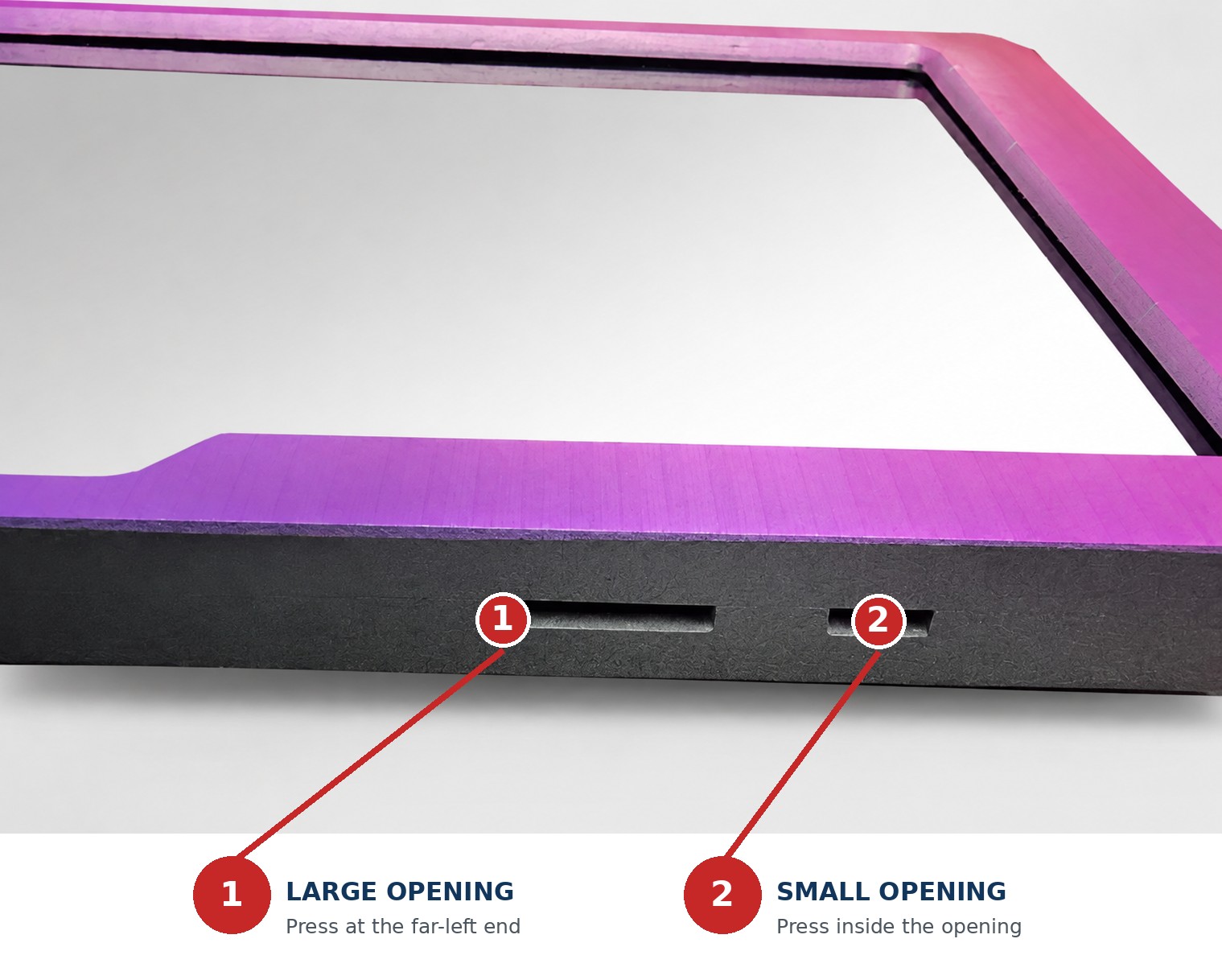
Important: You do not need to know the machine model. Both openings are present on every machine; only the power-button location changes. Press gently and never force the tool.
Last updated: August 28, 2026
Payments & Cashiering · 2 minPayment terminal problemWhat to do when a card terminal will not process a payment.+
- Keep the passenger informed while you check the terminal.
- Confirm the terminal has power and a network connection.
- Follow the approved restart procedure for the terminal installed in your vehicle.
- Do not repeatedly charge the same card if the result is unclear.
- Contact Dispatch or the cashier before using another payment method.
Payments & Cashiering · 3 minCoupons and gift certificatesValidate them and receive proper lease credit.+
- Accept only original coupons or gift certificates; photocopies are not accepted.
- Confirm the expiration date is valid.
- For coupons, collect the remaining fare in cash and make sure the coupon is completely filled out.
- Gift certificates are one-time use and no cash change is given.
- Include the original coupon or gift certificate at bookout and tell the cashier what you received.
Payments & Cashiering · 1 minGiving a cash receiptProvide proof of payment when requested.+
- Carry All Island business cards in the vehicle.
- Use the receipt form printed on the back of the card.
- Write the date, fare and trip information clearly.
- Give the completed receipt to the passenger.
Payments & Cashiering · 2 minWaiting-time chargesWhen waiting time applies and how to update the fare.+
- Do not charge waiting time for the initial pickup.
- Waiting time applies to passenger stops and wait-and-return jobs unless the booking says otherwise.
- Give the customer the stated grace period and explain the charge before it begins.
- Message Dispatch with the waiting time so the fare can be updated.
Important: The current waiting-time rate is $1 per minute after a five-minute grace period unless the booking notes state otherwise.
Last updated: August 28, 2026
Payments & Cashiering · 2 minCollecting payment up frontProtect long-distance or concerning trips.+
- For long-distance trips or suspicious circumstances, request payment before leaving the pickup.
- For credit-card prepayment, ask Dispatch to lift any distance restriction needed to reach the payment step.
- If the passenger refuses, notify Dispatch before moving.
- If you feel threatened, remain in a safe place and call 911.
Payments & Cashiering · 2 minDaily bookout procedureReconcile every shift before leasing again.+
- Book out at the end of every daily lease.
- See a cashier at an office or call Dispatch when an office is closed.
- Report cash, coupons, gift certificates, account tickets and other payments accurately.
- Drop the required payment and confirm the prior shift is reconciled.
Important: Drivers may be placed on hold and unable to lease again until the prior shift is paid and verified.
Last updated: August 28, 2026
Payments & Cashiering · 5 minHow to calculate your own bookoutCalculate the amount you owe using your Total Book, sales tax and dispatch fee.+
- Find your dispatch fee. Take your Total Book and locate the correct dispatch fee in the chart below.
- Divide your Total Book in half: Total Book ÷ 2 = Your Half.
- Calculate sales tax on your half: Your Half × 8.625% = Sales Tax.
- Add the charges: Your Half + Sales Tax + Dispatch Fee.
- Subtract all credit-card calls and account calls. The remaining balance is what you owe for the day.
Example
- Total Book
- $500.00
- Half of Total Book
- $250.00
- Sales Tax (8.625% of $250.00)
- $21.56
- Dispatch Fee
- $20.00
- Less: Credit Cards and Account Calls
- −$100.00
- Amount owed
- $191.56
Dispatch fee chart
Effective August 2019Use the highest Start Amount that does not exceed your Total Book. The listed fee applies until the next Start Amount.
| Start Amount | Dispatch Fee |
|---|---|
| $1.00 | $7.50 |
| $171.00 | $8.00 |
| $186.00 | $8.50 |
| $201.00 | $9.00 |
| $216.00 | $9.50 |
| $231.00 | $10.00 |
| $246.00 | $10.50 |
| $261.00 | $11.00 |
| $276.00 | $11.50 |
| $301.00 | $12.00 |
| $316.00 | $12.50 |
| $331.00 | $13.00 |
| $346.00 | $13.50 |
| $361.00 | $14.00 |
| $376.00 | $14.50 |
| $391.00 | $15.00 |
| $411.00 | $16.00 |
| $431.00 | $17.00 |
| $451.00 | $18.00 |
| $471.00 | $19.00 |
| $491.00 | $20.00 |
| $511.00 | $21.00 |
| $531.00 | $22.00 |
| $551.00 | $23.00 |
| Start Amount | Dispatch Fee |
|---|---|
| $571.00 | $24.00 |
| $591.00 | $25.00 |
| $611.00 | $26.50 |
| $631.00 | $28.00 |
| $651.00 | $29.50 |
| $671.00 | $31.00 |
| $691.00 | $32.50 |
| $711.00 | $34.00 |
| $731.00 | $35.50 |
| $751.00 | $37.00 |
| $771.00 | $38.50 |
| $791.00 | $40.00 |
| $811.00 | $42.00 |
| $831.00 | $44.00 |
| $851.00 | $46.00 |
| $871.00 | $48.00 |
| $891.00 | $50.00 |
| $911.00 | $52.00 |
| $931.00 | $54.00 |
| $951.00 | $56.00 |
| $971.00 | $58.00 |
| $991.00 | $60.00 |
Important: Sales tax is calculated on half of the Total Book, not on the full Total Book.
Last updated: August 28, 2026
Airports · 3 minAirport pickup procedureWait legally and coordinate the terminal pickup.+
- Review the airport, terminal, passenger, flight and booking notes.
- Track the flight, but allow for baggage, customs and walking time.
- Wait outside the airport or in an approved holding lot; do not sit in front of the terminal.
- Mark ARRIVED when permitted, requesting help from Dispatch if distance restrictions interfere.
- Proceed to the passenger pickup area only after receiving the correct location from Dispatch or the passenger.
Important: Stay current on airport construction and terminal changes. Never accept an unauthorized street-hail pickup at an airport.
Last updated: August 28, 2026
Customer Service · 3 minProfessional customer serviceSimple habits that improve reviews and gratuities.+
- Dress neatly and maintain a clean, professional appearance.
- Carry enough small bills to make change.
- When physically able, offer help with doors, luggage, groceries, walkers or collapsible wheelchairs.
- Keep the rear seat and trunk clean and the vehicle smelling fresh.
- Ask passengers about reasonable comfort preferences such as the radio or temperature.
Customer Service · 2 minAssisting passengers safelyHelp with a passenger's property without physically touching the passenger.+
- You may assist with a passenger's property, including luggage, groceries, walkers, and collapsible wheelchairs.
- Handle and secure the passenger's belongings carefully to prevent loss or damage.
- Never touch, lift, steady, move, or otherwise physically assist a passenger.
- If a passenger needs physical assistance, politely explain that drivers cannot provide it and contact Dispatch or a manager for direction.
Important: Physically assisting a passenger can injure the passenger or driver and exposes both you and All Island Transportation to liability.
Last updated: August 28, 2026
Customer Service · 2 minLost propertyProtect a passenger's property and document the return.+
- Do not keep, use, or inspect the passenger's property unnecessarily.
- Notify Dispatch and describe the item and the trip where it was found.
- Follow Dispatch instructions for returning or securing the item.
- Document when and to whom the item was released.
Schedule & Attendance · 1 minCalling out of a shiftNotify the company as early as possible.+
- Call the Driver Call Out Line at 516-355-2811 or use the Call Out email button on the home page.
- Provide your name, driver number, and the shift you are calling out for.
- Give as much notice as possible so coverage can be arranged.
- Do not assume a text was received until your call-out is acknowledged.
Important: The approved call-out method is the Driver Call Out Line at 516-355-2811 or the Call Out email link on this website.
Last updated: August 28, 2026
Rules & Requirements · 2 minHack license and defensive drivingComplete the required driver licensing steps.+
- Maintain the required New York State Class E driver license.
- Apply for the required Town of Hempstead hack license within two weeks of starting your lease.
- Obtain the paperwork from the Franklin Square office.
- Attend the first available company Defensive Driving Course after starting to lease.
- Keep all licenses and certificates current.
Rules & Requirements · 1 minNo smoking or vapingSmoking in any company vehicle is prohibited.+
- Do not smoke cigarettes, cigars, pipes, marijuana or use vape pens inside the vehicle.
- Step completely outside the vehicle if you smoke.
- Keep the cabin free of smoke odor and residue.
- Report any pre-existing odor or evidence before beginning the lease.
Important: Evidence of smoking may result in a $250 cleaning fee.
Last updated: August 28, 2026
Rules & Requirements · 2 minStreet hails and walk-up passengersOnly transport passengers with a valid reservation.+
- Do not pick up a person who hails the taxi from the street.
- Ask the passenger to call or text 516-742-2222 to arrange the trip.
- Do not allow the passenger to enter until the reservation is created.
- At an LIRR station, report any walk-up to Dispatch and have the trip sent to your tablet before departing.
Important: Unauthorized street-hail pickups are illegal and may result in substantial TLC fines.
Last updated: August 28, 2026
Vehicle & Lease · 3 minComplete the dent sheetDocument the vehicle before your first pickup.+
- Inspect the vehicle before beginning the lease.
- Test the lights, locks, air conditioning, heat and rear doors.
- Inspect the body, glass, tires and interior for existing damage.
- Record every issue clearly on the dent sheet.
- Return the completed dent sheet to the office before your first pickup.
Important: Unreported pre-existing damage may be attributed to you.
Last updated: August 28, 2026
Vehicle & Lease · 2 minGas policyKeep at least one-quarter tank at both ends of the lease.+
- Confirm the vehicle has at least one-quarter tank at the start of the lease.
- Maintain enough fuel to avoid running low during a trip.
- Do not pick up a passenger until you have added at least $15 of gas when fuel is low.
- Never stop for fuel with a passenger unless an emergency makes it unavoidable.
- Return the vehicle with at least one-quarter tank.
Vehicle & Lease · 2 minCar washes and passenger messesKeep the vehicle clean and handle major messes correctly.+
- Wash the vehicle whenever needed and keep the receipt for reimbursement.
- Current reimbursement is up to $10 for a car wash or $12 for a minivan.
- Contact a manager if the vehicle needs professional detailing.
- If a passenger becomes sick or creates a major mess, stop accepting new customers.
- Notify Dispatch immediately and bring the vehicle to Franklin Square for detailing.
Vehicle & Lease · 1 minVehicle service scheduleReport overdue maintenance before it becomes a breakdown.+
- Check the service sticker on the driver's side of the windshield.
- Vehicles are generally scheduled for service every 3,000 miles.
- Alert a manager if the vehicle is due or overdue.
- Use the repair shop behind the Franklin Square dispatch office as directed.
Vehicle & Lease · 1 minEZ-Pass requirementBe prepared for bridge and tunnel tolls.+
- Maintain an active EZ-Pass while leasing a vehicle.
- Confirm it is available before accepting trips that may require toll roads.
- Use it correctly at bridges and tunnels.
- Report any problem before starting a toll trip.
Important: A $25 administration fee may be added when the company receives a toll violation from your lease period.
Last updated: August 28, 2026
Safety & Emergencies · 3 minVehicle breakdownSecure the vehicle and get help quickly.+
- Move to a safe location if the vehicle can be moved safely.
- Turn on hazard lights and contact Dispatch with your exact location and vehicle number.
- If you have a passenger, ask Dispatch to send another vehicle.
- Wait for instructions about the company tow truck or an authorized highway tow.
- Do not drive back to the base if the vehicle is unsafe to operate.
Important: Personal safety comes first. Do not turn a minor problem into major damage by continuing to drive.
Last updated: August 28, 2026
Safety & Emergencies · 5 minAfter an accidentProtect people, evidence and the passenger's trip.+
- Stop safely, assess injuries and call 911 so police can document the accident.
- Photograph the other vehicle's plate immediately.
- Notify Dispatch and request another vehicle for any passenger.
- Exchange insurance, registration and driver-license information; collect passenger and witness information.
- Photograph all vehicles, damage, road conditions, signs, skid marks and the overall scene.
- Ask how to obtain the police report, then report to the Claims Department with all information.
Important: Do not admit fault or argue at the scene. If there is danger or injury, call 911 first.
Last updated: August 28, 2026
Safety & Emergencies · 2 minReporting a passenger incidentReport injuries, property damage or serious behavior.+
- Notify Dispatch if a passenger falls while entering or exiting.
- Report any damage to luggage, clothing, a walker, wheelchair or other property.
- Report harassment, discrimination, threats or serious verbal abuse.
- Do not argue; pull over safely and follow Dispatch instructions.
- Document the booking, location, people involved and what occurred.
Safety & Emergencies · 3 minTraffic-ticket preventionAvoid the most common camera violations.+
- Stop before the crosswalk line at red lights.
- Observe posted limits; the default limit in New York City is generally 25 MPH unless posted otherwise.
- Do not turn right on red in New York City unless a sign specifically permits it.
- Never pass a stopped school bus with its red lights flashing and stop arm extended, including from the opposite direction.
- When uncertain, wait and put safety first.
Payments & Cashiering · 2 minSpecial-account tripsFollow the tablet notes for subsidized and paratransit rides.+
- Read the account name, payment instructions and booking notes before pickup.
- Collect only the passenger portion shown in the booking.
- Never request a gratuity from any passenger.
- Secure any required ticket or voucher and include it in the bookout envelope.
- Tell the cashier about every ticket, voucher or special payment received.
Important: Special-account rules can vary. When the tablet and this guide differ, stop and confirm the current instructions with Dispatch.
Last updated: August 28, 2026
Need to contact All Island?
Choose a topic and send the details to the appropriate department.
HELP US IMPROVE
Website feedback
Is there a topic, tutorial, or other information you would like to see added? Send us your suggestion.